
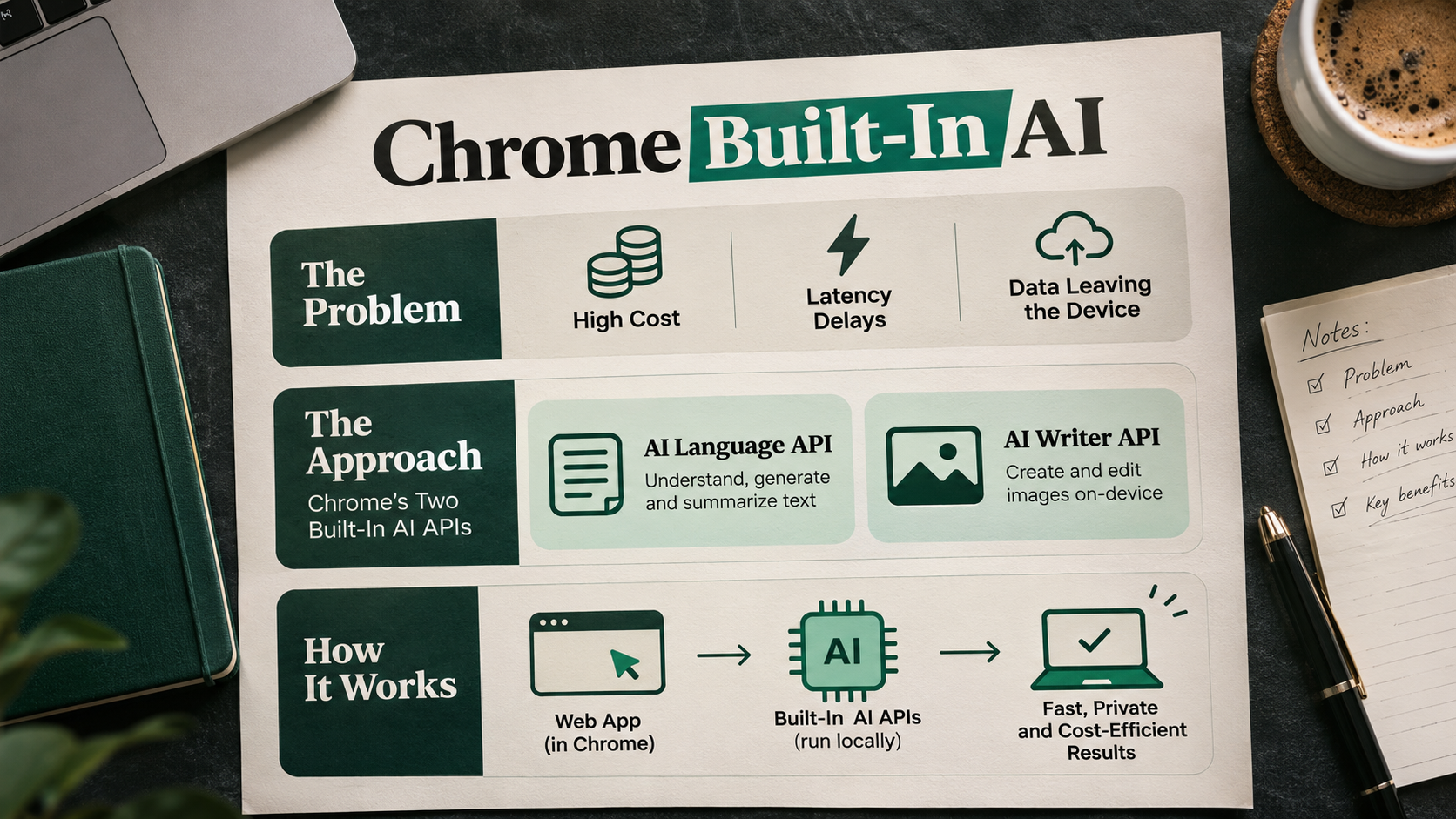
On 17 November 2026, freeCodeCamp published a tutorial, How to Build a Translator with Chrome's Built-In AI. It walks through a translation feature in Next.js that runs on the user's device instead of calling a cloud service.
This is a tutorial rather than a company case study, so there is no organization reporting business results. We treat it as a worked example: the problem, the approach, how it works and what other teams can take from it. Everything below comes from the freeCodeCamp article, and the test results are the author's own.
The problem: cost, latency and data leaving the device
According to the tutorial, most translation features work the same way. The user types text, the app sends it to a translation API, and a translation comes back. The author notes that every request adds cost and latency, and that the user's text leaves their device.
The tutorial also draws a line between two ideas that are easy to confuse:
- Internationalization (i18n) prepares an interface for several languages and regions. It covers language selection, locale-aware dates, numbers and currencies, right-to-left layout, and static strings that a person wrote and reviewed.
- AI-powered translation produces translations dynamically for text that nobody prepared in advance, for example user comments, reviews, support messages and posts.
The author says AI translation complements i18n and does not replace it. Buttons and menus still need curated strings, and the Translator API handles the rest. Chrome's documentation gives an example of a support chat, where a user writes in their first language and the site translates the message into the agent's language before it leaves the user's device.
The approach: Chrome's two built-in AI APIs
The tutorial builds on two APIs that Chrome ships. The Language Detector API takes text and returns a ranked list of languages, each with a confidence score between 0 and 1. The Translator API works on a single language pair, such as English to Spanish, and converts text from one to the other.
According to the article, Chrome fetches compact, purpose-built models when they are needed and runs them locally. This means developers do not host a model, run an inference server or pay per request. They call a JavaScript API.
The requirements are specific:
- Node.js 20.9 or later.
- Desktop Chrome 138 or later. The APIs do not work on mobile, and Firefox and Safari do not support them. Chrome's browser-support table also lists Edge (148).
- The author tested the tutorial in Chrome 156 on macOS.
How it works
Language packs and availability
Chrome's documentation describes a language pack as "like a dictionary for a given language". The first translation for a pair triggers a download, and later translations reuse it. The browser owns the model, so the app does not bundle or host model files.
The flow is asynchronous. The app calls availability() first, then create(), and can watch download progress. For both APIs, availability() returns one of four values: unavailable, downloadable, downloading or available. The tutorial says the interface should handle each one.
One privacy detail applies. Chrome hides the download status of specific language pairs. Until a site has created a translator for a given pair, every pair shows as downloadable.
Four constraints to design around
The tutorial lists four constraints, all taken from Chrome's documentation:
- User activation. When a model must be downloaded, creating a translator or detector requires a user gesture such as a click.
- No Web Workers. Neither API is available in workers, so calls come from the main thread. The author points out that the model runs outside the JavaScript thread, so this does not block the interface.
- Sequential processing. Translations run one after another, so a large request holds up later ones. The advice is to split the work into pieces and display a spinner or similar loading cue.
- Top-level windows only. Out of the box, the APIs can be used from a page's top-level window, and from iframes that share its origin. An iframe from a different origin needs the Permissions Policy
allowattribute before it can use them.
A small wrapper around the APIs
The project keeps every call to Chrome's APIs in one file, lib/chrome-ai.ts, so the rest of the app never touches them directly. The folders are split by job: lib/ for plain TypeScript that talks to Chrome, hooks/ for React state, components/ for the interface and app/ for the Next.js page and layout. The author also installs the @types/dom-chromium-ai package so TypeScript knows about Translator and LanguageDetector.
The wrapper makes several design choices:
- Feature detection. A function checks that both
TranslatorandLanguageDetectorexist inself. It returns true or false and never throws, which matters because Next.js renders on the server first. - Cached detector. The code stores the detector's promise, not the finished detector. If two parts of the app ask at once, they share one creation. If creation fails, for example because no click happened, the promise is reset so the user can retry.
- Cached translators. A translator is tied to one language pair and is expensive to create, so the code keeps them in a
Mapkeyed by a string such asen>es. The author notes this is why translating a second sentence is fast. - Availability check before creation. If a pair is
unavailable, the code throws a clear error before any download starts for a pair that can never work. - Cleanup. MDN recommends calling
destroy()when you finish with these objects, because they can use a lot of resources. AdestroyAll()function does this when the component unmounts.
Handling low confidence and errors
Language detection is a probability, not a fact. Chrome's documentation warns that very short phrases and single words give low-accuracy results. The app therefore sets a confidence threshold of 0.6 and asks the user to choose the language manually when the result falls below it. The author calls 0.6 a starting point to tune for your own users.
Errors arrive as a DOMException, and the exception name says what went wrong. The tutorial turns each one into a message the user can act on:
NotAllowedError: Chrome needed a click to start a download. The user is asked to press Translate again.NotSupportedError: MDN documents this as the error for unsupported languages. The author also saw it on a brand-new Chrome profile during the very first try, when Chrome had not yet finished setting up its components. A second try succeeded.QuotaExceededError: the text is too long.NetworkError: the language pack could not be downloaded.
The translation hook
A React hook runs the whole flow. It cancels anything in flight and creates a new AbortController. The controller's signal is passed to every call, so a single cancel halts language detection, the download and the translation alike. The hook then detects the language if needed, rejects a source and target that match, prepares the translator while showing download progress, and streams the result.
For streaming, the app uses translateStreaming() and appends each chunk to the output. When the author tried a passage of four sentences, Chrome produced a separate chunk for each sentence. A short sentence yields a single chunk, so it behaves like translate(). The author reads the stream with getReader() because for await over a ReadableStream needs the dom.asynciterable TypeScript lib.
Server rendering and unsupported browsers
The interface checks browser support with useSyncExternalStore, which accepts a separate server snapshot. The server and first client render both see null, so React avoids a hydration mismatch. The app then shows a "checking" message, a notice for unsupported browsers, or the translator. Browsers without the APIs get an explanation and a link to Chrome's documentation instead of a broken form.
The tutorial's language list comes from Chrome's documentation. Chrome says the list is specific to its implementation and may change, and there is no function yet to fetch it dynamically. That is why the app still calls Translator.availability() before every translation.
Results the source reports
The tutorial does not report performance benchmarks or cost savings. What it describes is a working feature, tested by the author in Chrome 156 on macOS, that can do the following:
- detect the language of typed text;
- translate it into a language the user chooses;
- stream the translation into the page;
- display download progress for language packs, with a cancel option;
- copy the result, read it aloud and swap the source and target languages;
- cope with browsers that do not support the APIs.
These are the author's own observations, not independent tests.
What this means for businesses and developers
- Keep i18n for fixed text. Use curated strings for buttons and menus, and reserve on-device translation for user-generated content.
- Design for the four availability states. Handle
unavailable,downloadable,downloadingandavailablein the interface. - Plan around browser support. The APIs work in desktop Chrome only, so build a clear fallback for everyone else.
- Treat detection as a guess. Set a confidence threshold, tune it for your users and ask them to choose when the result is weak.
- Chunk long input. Because translations run one at a time, split large text and show a loading indicator.
- Release resources. Call
destroy()on translators and detectors when the user leaves the feature.
Final thoughts
The tutorial shows that a translation feature can run without a hosted model or a per-request API, as long as your users are on desktop Chrome and you plan for downloads, low-confidence detection and unsupported browsers.
Read the full walkthrough on freeCodeCamp and try the APIs in Chrome's Built-in AI Playground before you write code.